


Getting Started
Analytic Hierarchy Process software for decisions that have to be shown, not just made. Build the criteria hierarchy, make pairwise comparisons, check the consistency ratio, run sensitivity analysis and export a thesis-ready PDF or Excel report. Used in 125+ peer-reviewed papers, priced as a one-time purchase, and built for students, researchers and decision teams who need defensible priorities without a spreadsheet full of formulas. About Analytic Hierarchy Process Software →
Developed by Thomas L. Saaty in the 1970s, the Analytic Hierarchy Process (AHP) is a structured way to organize and analyze complex decisions. It combines simple human judgments with a mathematical model, so you can compare criteria, compare alternatives, and see which option has the strongest overall support.
SpiceLogic Analytic Hierarchy Process Software is a wizard-based AHP tool. In this tutorial, we will build a small decision model for choosing a car. The goal is to compare two cars using three criteria: safety, comfort, and cost. As we walk through the example, you will see how the software captures the decision structure, pairwise comparisons, priorities, and final result.
The same steps also apply to Rational Will, because Rational Will includes the AHP software.
If you prefer video, the tutorial walks you through the same analytic hierarchy process example used in this article.
The Analytic Hierarchy Process, Step by Step
A typical AHP model follows these steps:
Step 1: Define the decision problem and the criteria.
Step 2: Define the alternatives, also called options.
Step 3: Use pairwise comparison to set priorities among the criteria and among the alternatives.
Step 4: Check the consistency of your pairwise comparisons.
Step 5: Calculate relative weights and use them to rank the alternatives.
Step 6: Review the result with sensitivity analysis.
Define the Problem and Criteria
In this example, the goal is to buy a car. The criteria are:
1. Maximize safety.
2. Maximize comfort.
3. Minimize cost.
When you start AHP Software, you will see the screen below.
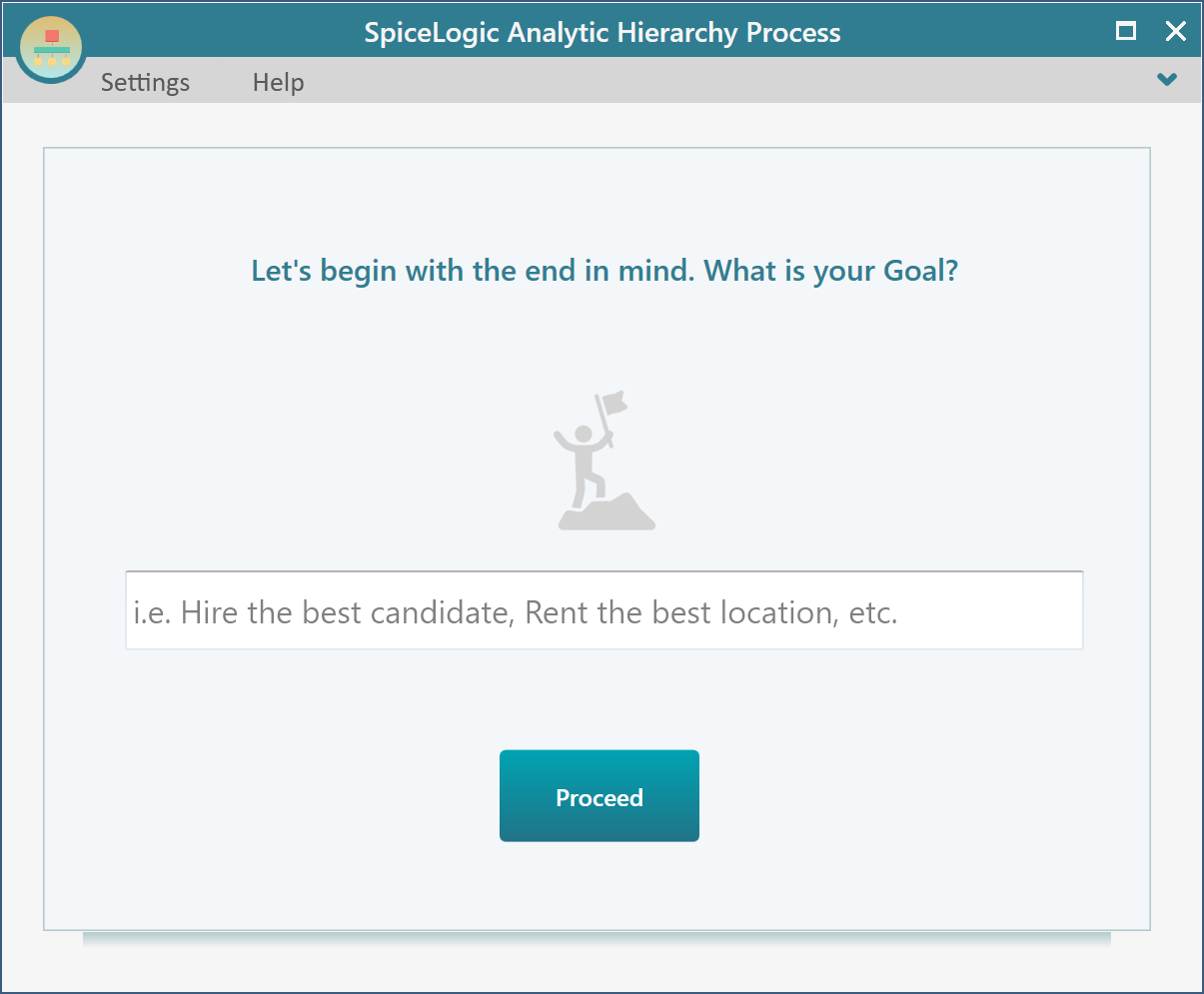
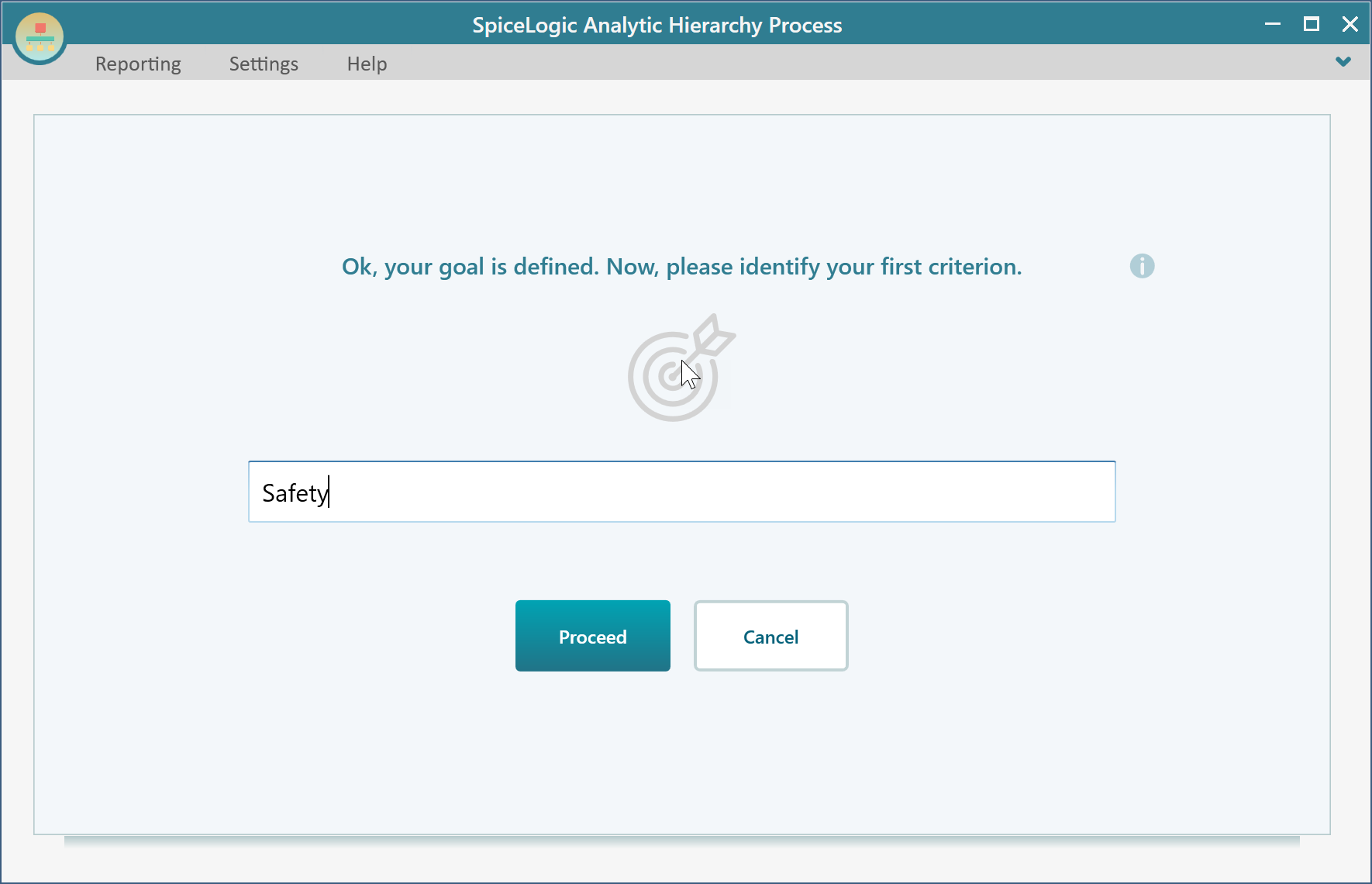
Enter your goal, for example "Buy a car", and then click "Proceed". The next screen asks for your first criterion. Enter "Safety" and continue.
After you click "Proceed", the wizard asks whether you have more criteria to add.
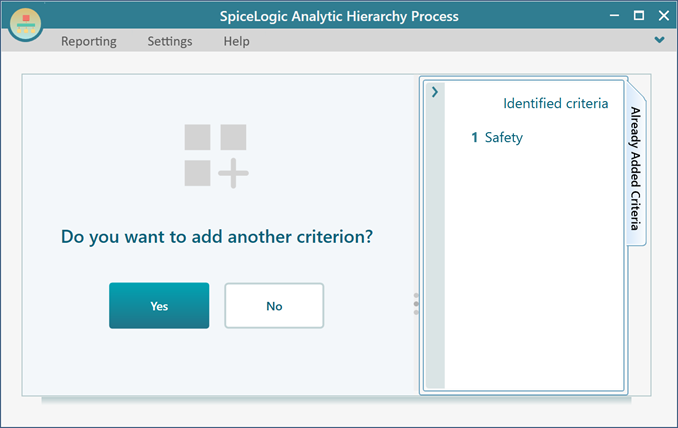
Click "Yes", then add the next two criteria in the same way:
- Comfort
- Cost
After all three criteria are entered, click "No" when the wizard asks whether you have more criteria.
You can still add, edit, or delete criteria later, so you do not need to get the model perfect on the first pass.
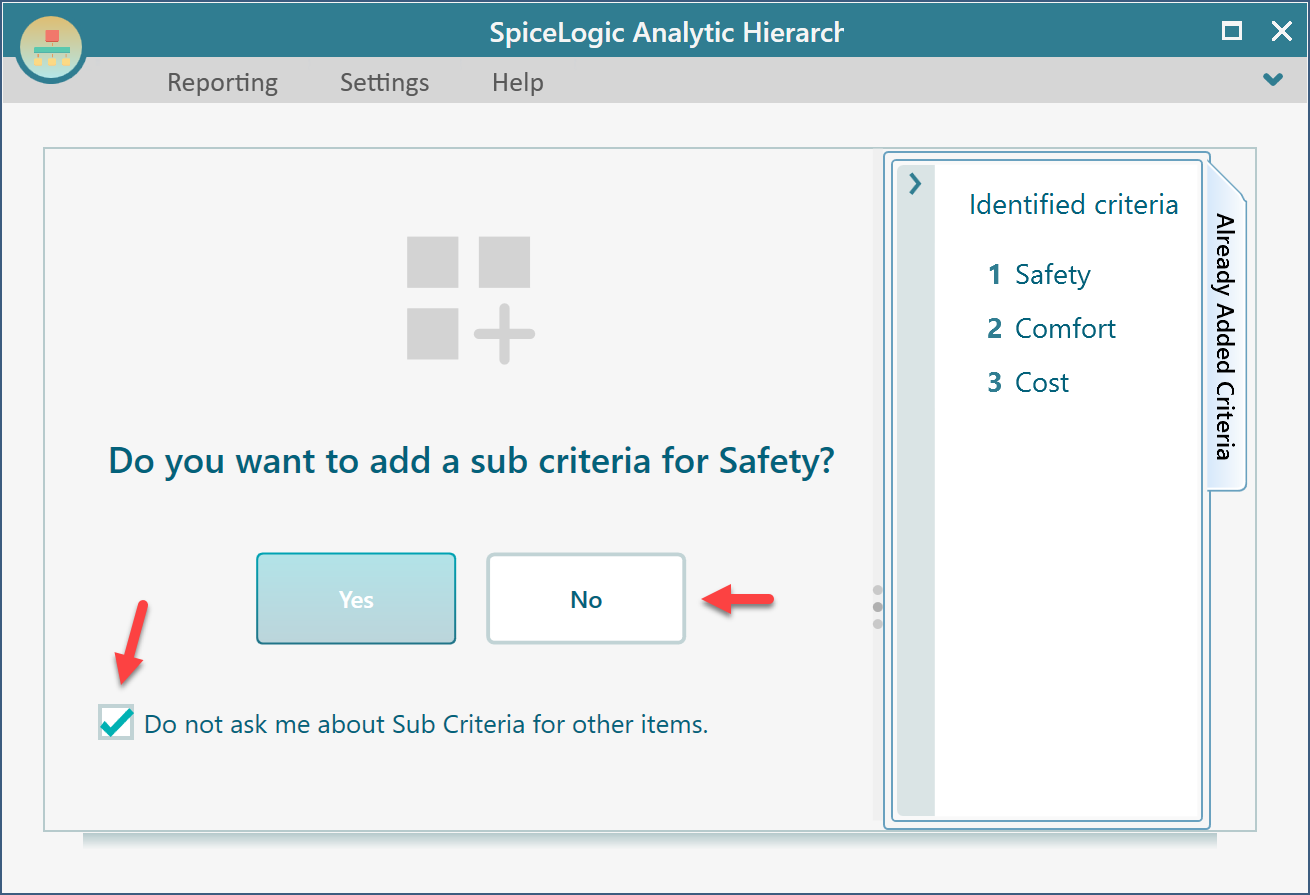
The wizard may also ask whether you want to add subcriteria. For this simple example, leave the model at one level. Check the "Do not ask me..." checkbox and answer "No".
Deriving Priorities for the Criteria
After you click "No", the software opens the pairwise comparison screen for your criteria. This is where you judge each criterion against another criterion.
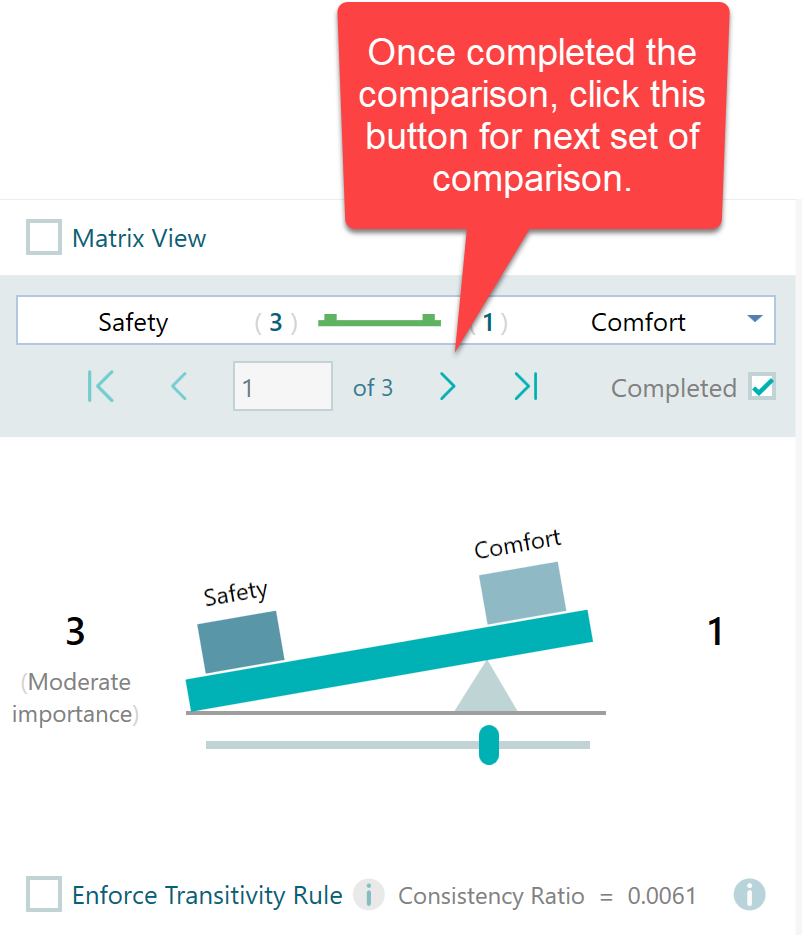
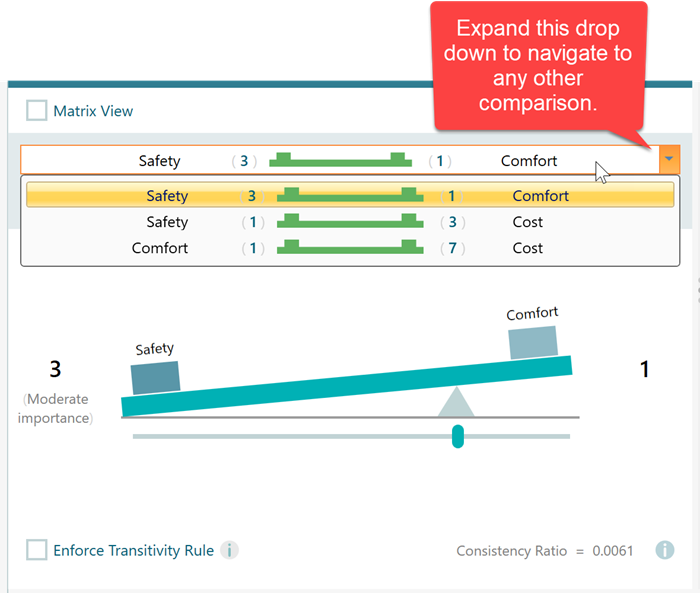
Complete each pairwise comparison in this window. If a comparison should remain 1:1, simply check the "Completed" checkbox to mark that comparison as finished before moving to the next pair.
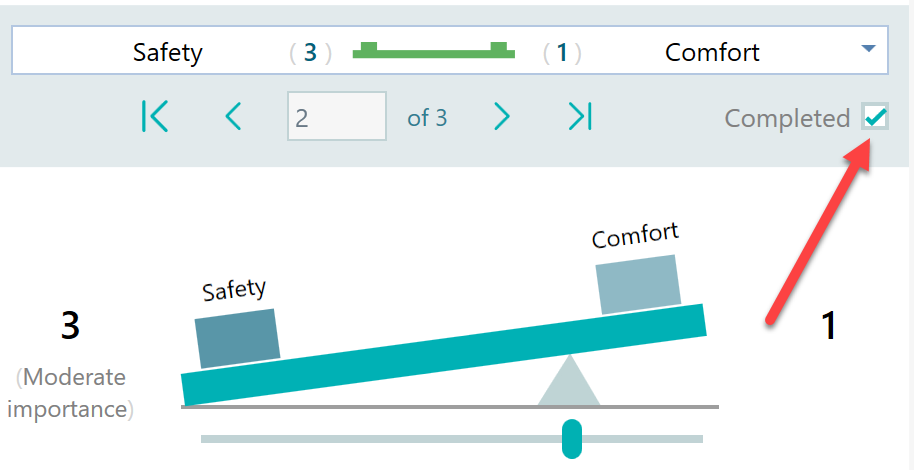
For this example, suppose you prefer minimizing cost 7 times as much as maximizing comfort. Also suppose you prefer minimizing cost 3 times as much as maximizing safety, and you prefer maximizing safety 3 times as much as maximizing comfort.
Move through the comparisons with the Next button and enter those judgments according to your own preferences.
You can also check "Matrix view" to see the complete pairwise comparison matrix. Clicking a cell in the matrix opens the comparison for that pair.
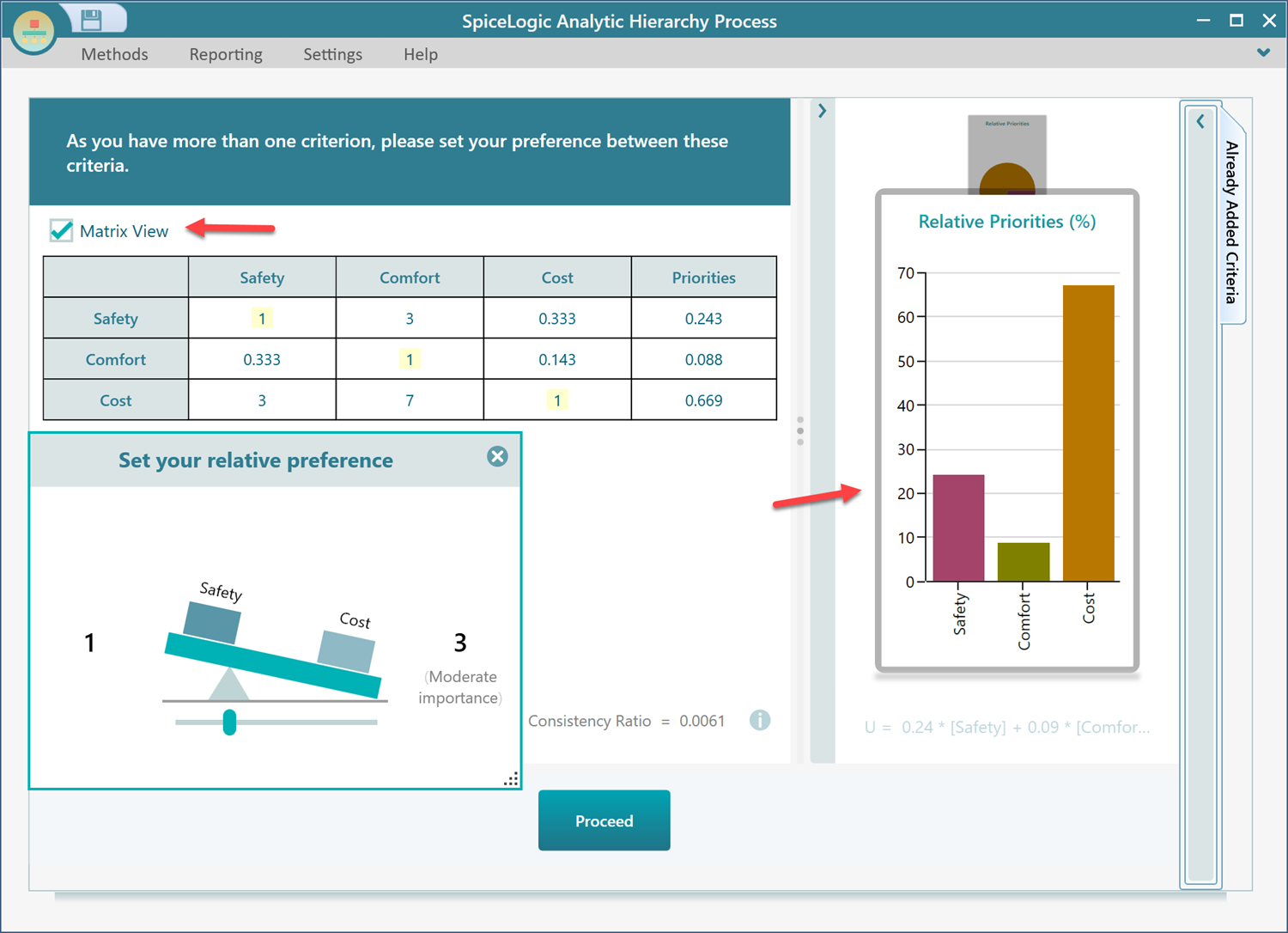
The criterion priorities are calculated immediately. The chart beside the matrix updates as soon as you change a judgment.
When all criteria comparisons are complete, click "Proceed".
Define Alternatives, or Options
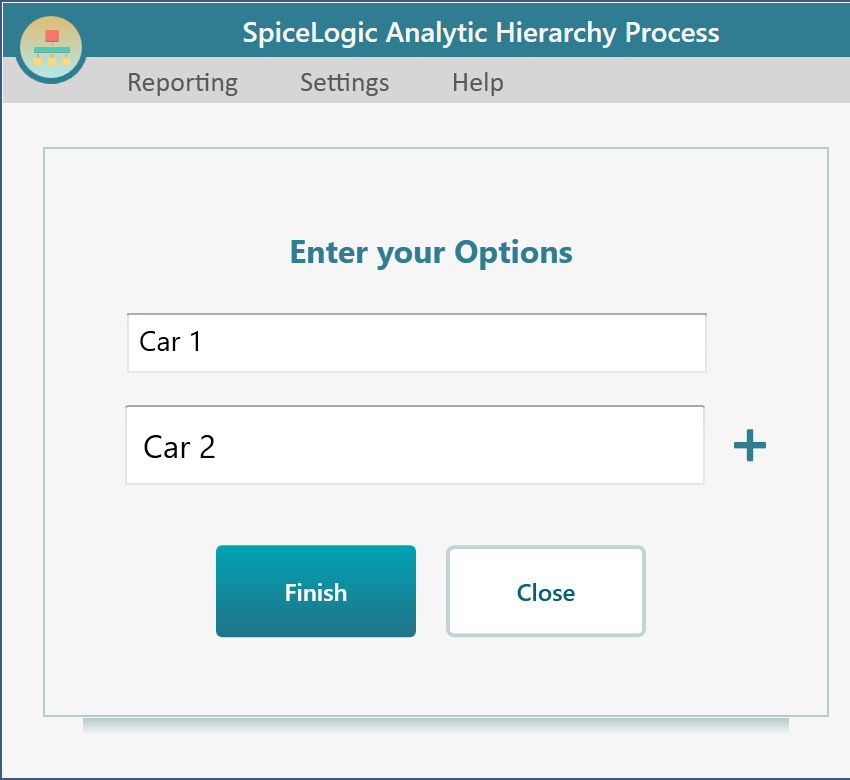
The next step is to enter the alternatives you want to compare. In this example, the options are:
1. Car 1
2. Car 2
Enter these options in the wizard.
Deriving Local Priorities for the Options
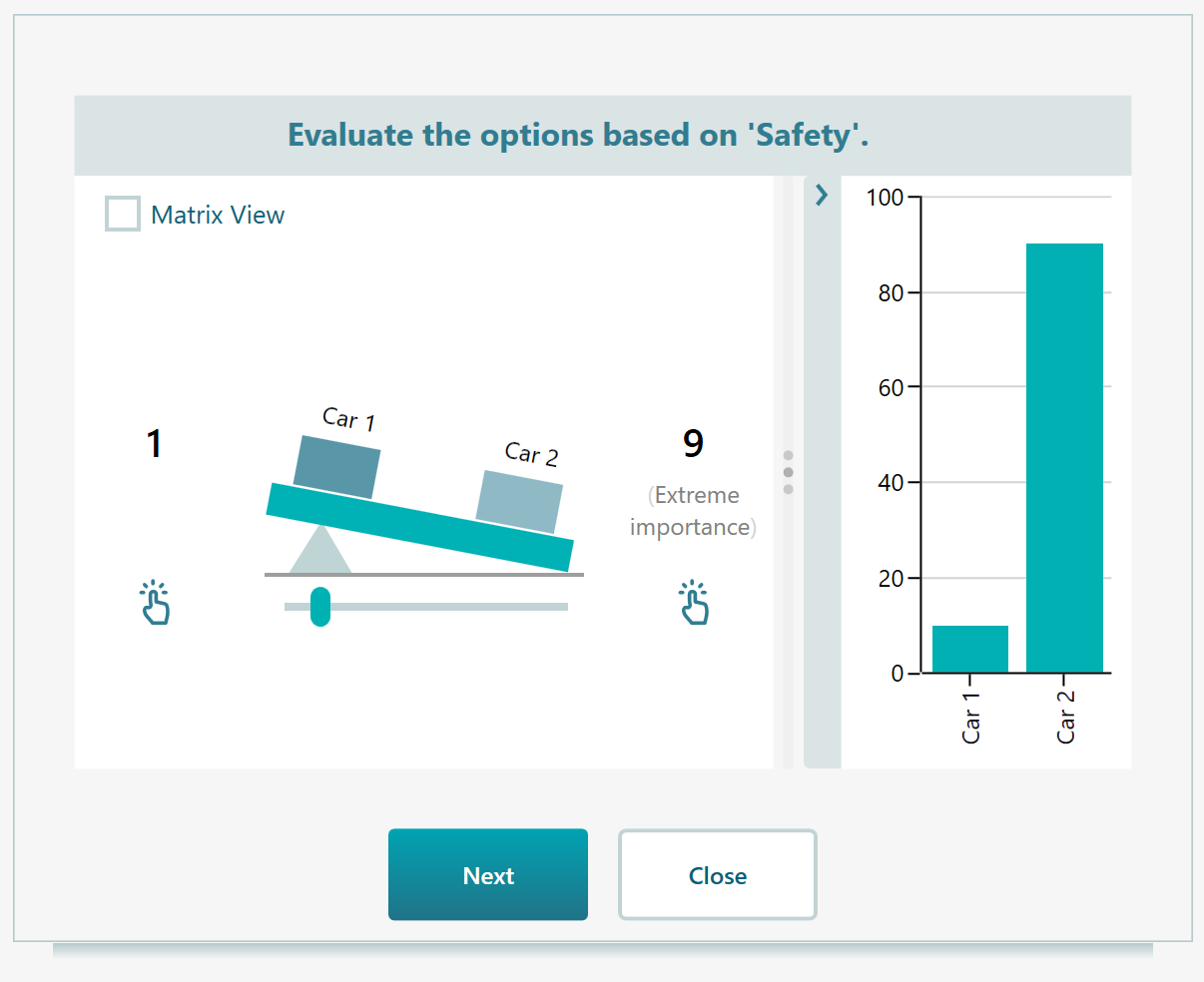
Click "Proceed". The software now asks you to compare the two cars against one criterion at a time. First, judge the cars for "Safety". You can use data, research, expert opinion, or your own belief. Suppose you believe Car 2 is 9 times safer than Car 1. Enter that comparison as shown below.
Click "Next" and compare the cars for "Cost". Suppose Car 1 is 7 times preferable to Car 2 for cost. Enter that judgment in the same way.
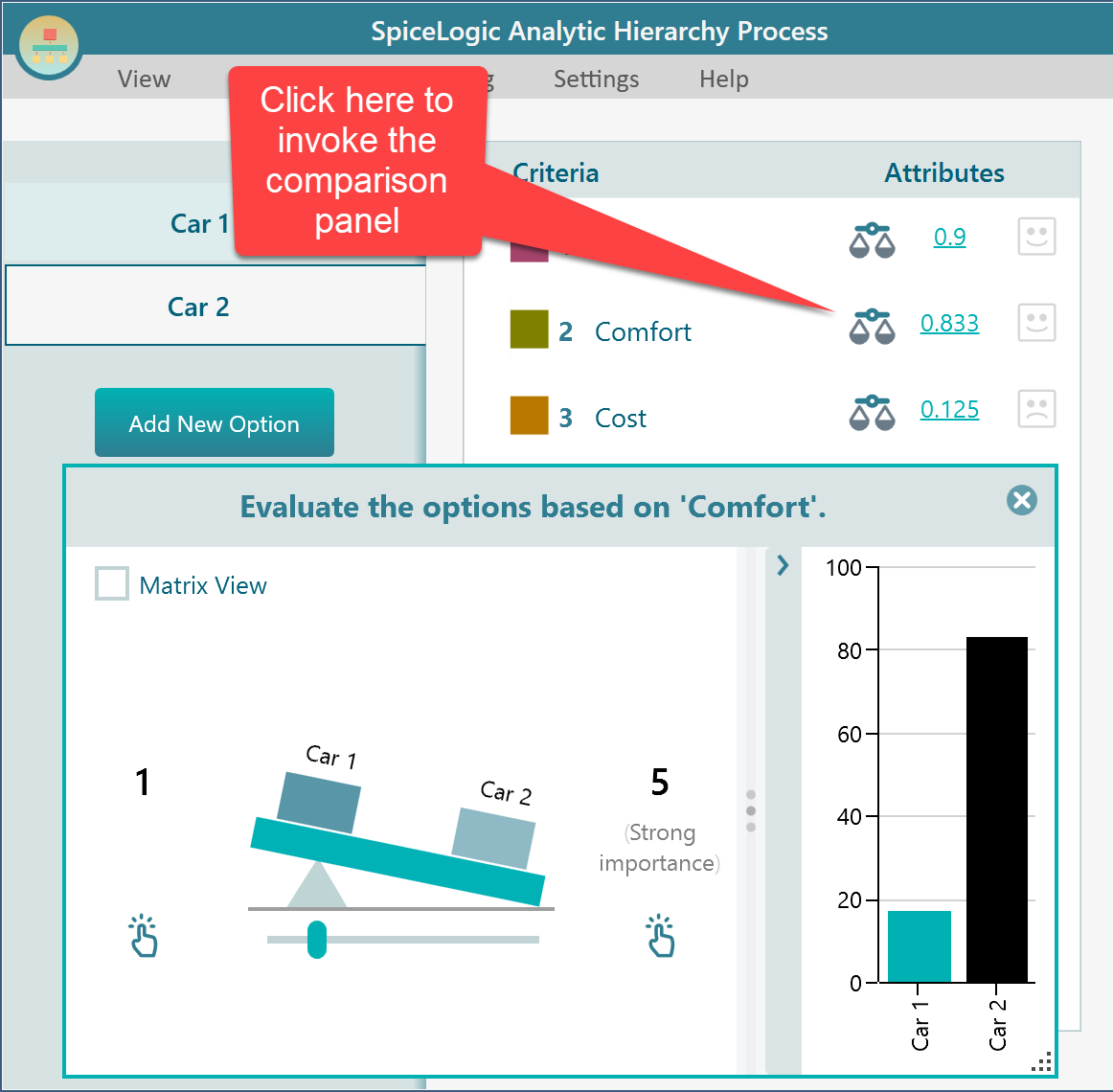
Click "Next" again and compare the cars for "Comfort". Suppose Car 2 is 5 times more comfortable than Car 1. Enter the preference and continue.
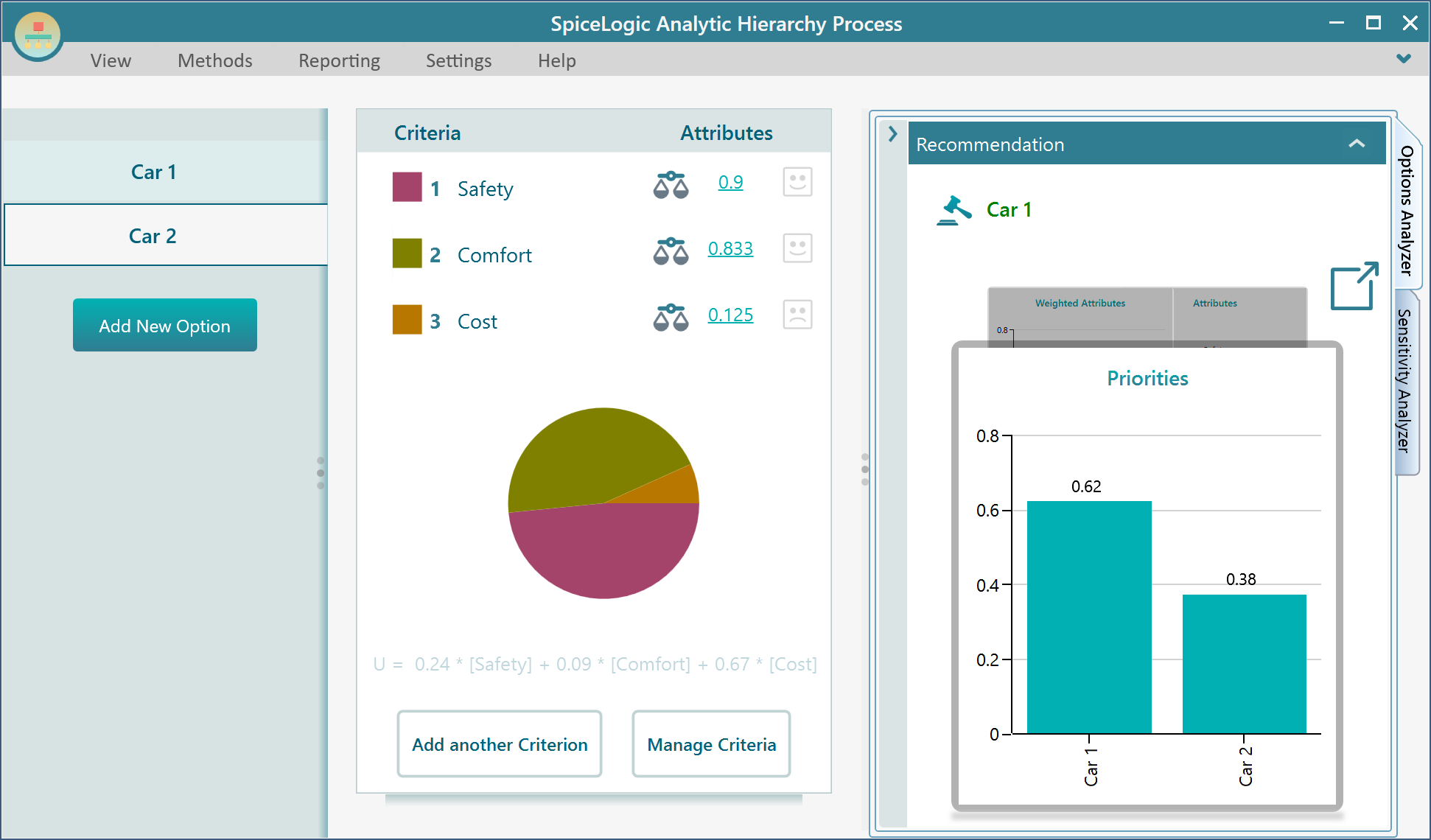
Finally, click "Finish". The AHP model is calculated and the result is shown. In this example, the recommendation is "Car 1" because Car 1 has an overall priority of 0.62, while Car 2 has an overall priority of 0.38.
Changing the Parameters
If you want to change any comparison later, click the Scale button. The pairwise comparison dialog opens again, and you can adjust the judgment.
Managing Options
You can add a new option by clicking the "Add New Option" button. You can also right-click the options panel to open the context menu, where you will find commands to edit, delete, or disable an option.
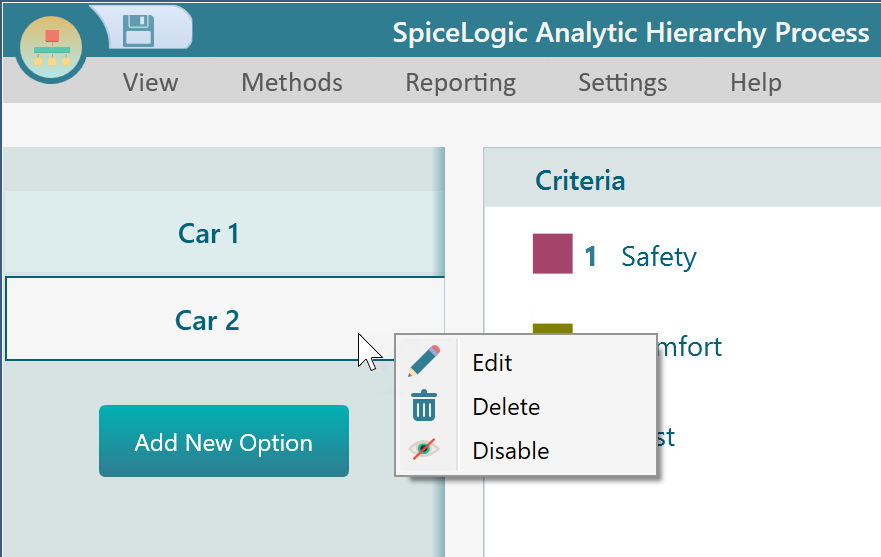
Learn more about managing options.
Managing Criteria Pairwise Comparisons
On the Options page, the "Manage Criteria" button takes you to the AHP Criteria Diagram page.
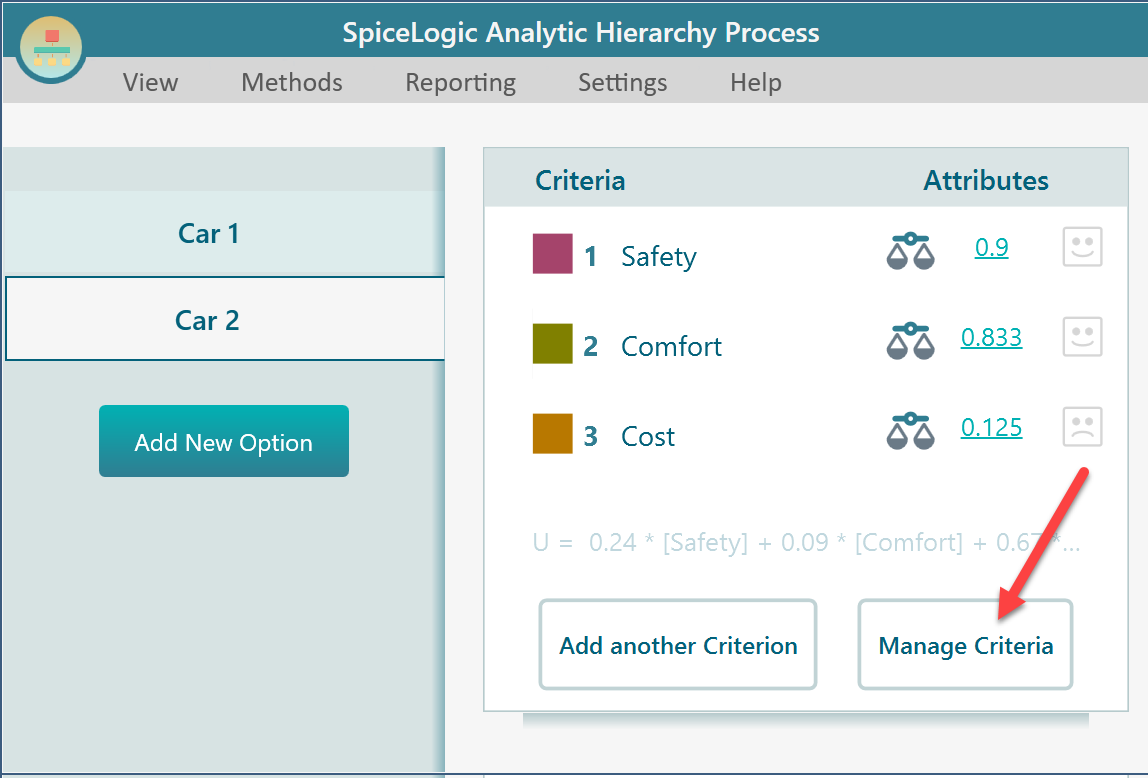
Learn more about managing criteria and subcriteria.