


 NuGet
NuGet
Documentation MCP server
The documentation MCP server gives your coding assistant access to the WPF HTML Editor's API reference, guides and examples while it works on your application. Connect the official endpoint in your coding tool so the assistant can check product details as it writes code.
Let's make it simple
Ask your coding assistant to help configure the endpoint. Some clients can add it through an agent command; others need a setting or configuration file. The client-specific instructions below show both approaches.
Add the MCP server at https://mcp.spicelogic.com/html-editor/wpfThe assistant does it itself. Reload Visual Studio, VS Code, or whichever tool you use, and it starts answering from the real WPF HTML Editor API instead of guessing. That is the whole setup.
Everything below is reference, for anyone who would rather wire it up by hand.
What the server is
SpiceLogic publishes an official Model Context Protocol (MCP) server for the WPF HTML Editor control at https://mcp.spicelogic.com/html-editor/wpf using the Streamable HTTP transport. It gives AI coding tools direct, verified access to the control's documentation, public API, current samples, NuGet package details, and licensing guidance, so they build against the real product rather than stale training data.
It is a remote, read-only endpoint over HTTPS. Nothing is installed on the developer machine, no account is created, and no API key is required. The endpoint is scoped to WPF only, so an assistant connected here cannot accidentally answer with the WinForms API. The shared https://mcp.spicelogic.com/html-editor endpoint exposes both controls, but the product-specific URL is the safer default.
Find API members by intent
When you know what the editor needs to do but not the class or interface that owns it, call search_api with plain words such as paste from Word, font size, or read only. It searches member names and their XML documentation, returning matching methods, properties, and events with the declaring type and signature. Then call get_api with a returned full type name to see the complete API.
If you are still curious, here is the by-hand setup
Nobody needs this part. Skip it unless you like knowing exactly what gets written where, or your assistant could not do it for you. It works the same in Claude Code, GitHub Copilot, Cursor, OpenAI Codex, Google Antigravity, and other MCP-compatible tools, and the URL never changes.
Visual Studio (GitHub Copilot)
Visual Studio 2026, or Visual Studio 2022 version 17.14 and later.
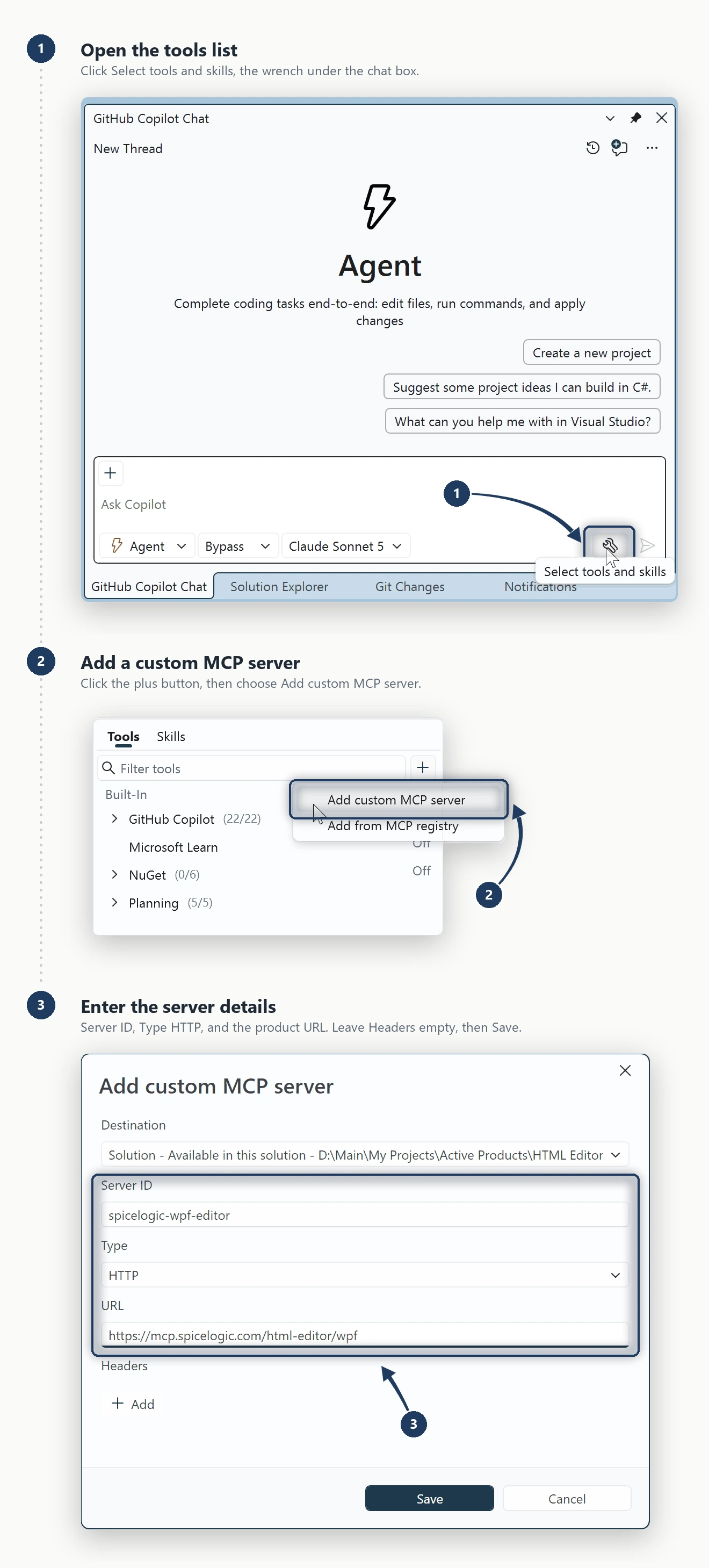
- Open Copilot Chat from View > GitHub Copilot Chat, then click Select tools and skills, the tools icon under the chat box.
- Click the plus button at the top of the Tools list, then Add custom MCP server.
- Destination: keep Global - Available in all solutions to get the server in every solution, or choose the solution-scoped file to commit it for your team.
- Server ID:
spicelogic-wpf-editor. Type:HTTP. URL:https://mcp.spicelogic.com/html-editor/wpf. Leave Headers empty, because the endpoint is public and takes no key. - Save, switch the chat to Agent mode, and tick the SpiceLogic tools in that same tools list.
Choosing HTTP is what turns the Command box into the URL box, and Environment Variables into Headers; stdio is for servers that run as a local process. A newly added server arrives switched off, listed under Added as (0/6), and its six tools stay invisible to the agent until you enable them.
The same registration in JSON, for anyone who would rather write the file. Visual Studio reads <solution>\.mcp.json, %USERPROFILE%\.mcp.json for every solution, and <solution>\.vs\mcp.json for a machine-local setup:
{
  "servers": {
    "spicelogic-wpf-editor": {
      "type": "http",
      "url": "https://mcp.spicelogic.com/html-editor/wpf"
    }
  }
}
That file is also where a server is removed: delete its entry from the .mcp.json it was saved to.
VS Code (GitHub Copilot Chat)
Add this to .vscode/mcp.json, or run "MCP: Open User Configuration" for every workspace. VS Code uses servers and requires "type": "http" for this remote server:
{
  "servers": {
    "spicelogic-wpf-editor": {
      "type": "http",
      "url": "https://mcp.spicelogic.com/html-editor/wpf"
    }
  }
}
Switch Copilot Chat from Ask to Agent mode to use the MCP tools.
GitHub Copilot CLI
copilot mcp add --transport http spicelogic-wpf-editor https://mcp.spicelogic.com/html-editor/wpfClaude Code
claude mcp add --transport http spicelogic-wpf-editor https://mcp.spicelogic.com/html-editor/wpfClaude Desktop
Open Settings, choose Connectors, choose Add custom connector, paste https://mcp.spicelogic.com/html-editor/wpf, and add it.
Cursor
Add this to ~/.cursor/mcp.json, or .cursor/mcp.json inside a project:
{
  "mcpServers": {
    "spicelogic-wpf-editor": {
      "url": "https://mcp.spicelogic.com/html-editor/wpf"
    }
  }
}
OpenAI Codex
Add it from the terminal:
codex mcp add spicelogic-wpf-editor --url https://mcp.spicelogic.com/html-editor/wpfOr add it to ~/.codex/config.toml:
[mcp_servers.spicelogic-wpf-editor]
url = "https://mcp.spicelogic.com/html-editor/wpf"
Google Antigravity
Open the MCP Servers panel, choose "Manage MCP Servers", then "View raw config". Add this to the global ~/.gemini/config/mcp_config.json file or the workspace .agents/mcp_config.json file. Antigravity uses serverUrl for a remote Streamable HTTP server:
{
  "mcpServers": {
    "spicelogic-wpf-editor": {
      "serverUrl": "https://mcp.spicelogic.com/html-editor/wpf"
    }
  }
}
Reload the MCP list and confirm that the seven SpiceLogic tools, including search_api are available.
What your assistant gets
| Tool | What it returns |
|---|---|
search_docs(product, query) | Matching guides and documentation pages for a product question |
get_doc_page(product, slug) | The full content of one documentation page |
search_api(product, query, kind) | Matching methods, properties, and events from a plain-language task |
get_api(product, symbol) | The complete reference for a public type and its members |
get_quickstart(product) | Package installation, current version, and a verified starter snippet |
get_licensing(product) | The supported license-key setup, with ready-to-paste startup code |
get_sample(product, task) | A documented working example for a specific task |
Use search_docs then get_doc_page for guides. Use search_api then get_api when you need the exact API member or signature.
On this product-specific endpoint, product is optional and the URL always selects WPF. API and quickstart answers are generated from the shipped NuGet package and its XML documentation comments on every release.
The server is rate limited per IP address. A companion llms.txt file provides a plain-text index for assistants that do not use MCP tool calls.
Try it with one prompt
Add the MCP server at https://mcp.spicelogic.com/html-editor/wpf. Then create a small WPF app, install SpiceLogic.HtmlEditor.WPF, add the HTML editor to the main window, load a heading and a short bulleted list, add a button that inserts today's date, build it, and run it.